
LFCS Admin Exam preparation guide series, main page can be found here.
This post is part of the Operation of Running Systems from the domain competency list for the exam. The full list can be found in the link above paragraph or the Linux Foundation page here.
As System Administrators for Linux sometimes we can face situations when we will need to change certain kernel parameters without restarting the server. Most of the changes can be completed as persistent or non-persistent, depending on what we want to achieve.
Non-persistent changes
as the name suggests are changes that will be revert back to default once we reboot the system. We can use the sysctl command to modify the kernel settings. We can run sysctl -a to display all variables, running this command we can see that there is over 1000 setting inside Linux OS. To make any changes we need to run this command with elevated access by using the sudo command.
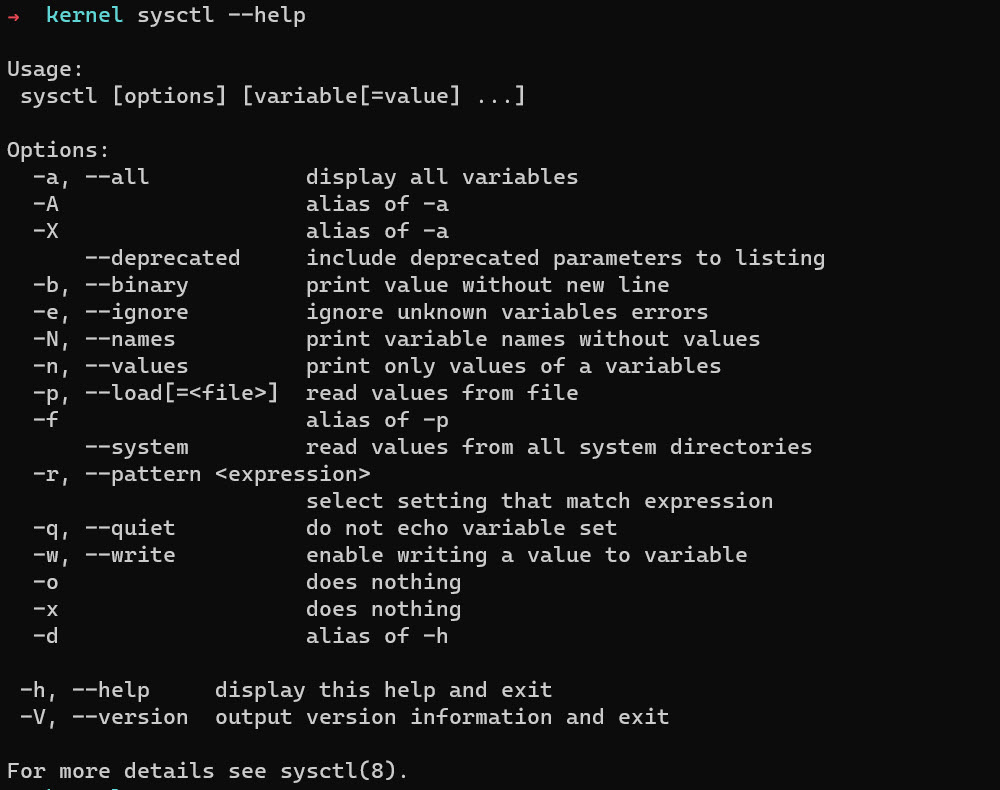
To make any change, we can, as mention before, use sysctl command, or we can modify the configuration file with a text editor of our choice. Lets us modify some settings, for example, the dev.cdrom.autoeject. If we run the
sudo sysctl dev.cdrom.autoeject
command, we can see that current settings are 0, which means not enable. To change above settings to enable or in this case to 1 we run
sudo sysctl -w dev.cdrom.autoeject=1
we will get output that our CDrom settings are now set to 1. But we can as well change this setting modifying the configuration file, which is located under /proc/sys/dev/cdrom directory, and the file name is the same as the setting we are changing autoeject. Running cat command on this file, we can see that the actual configuration is now 1 as we changed it just now. We can open this file in a text editor and modify it. To make the changes apply, we need to run sysctl -p to load the new settings.

Persistent changes
are changes that will stay once the system reboot. To make any setting permanent we need to modify the configuration files in /etc/sysctl.d directory.
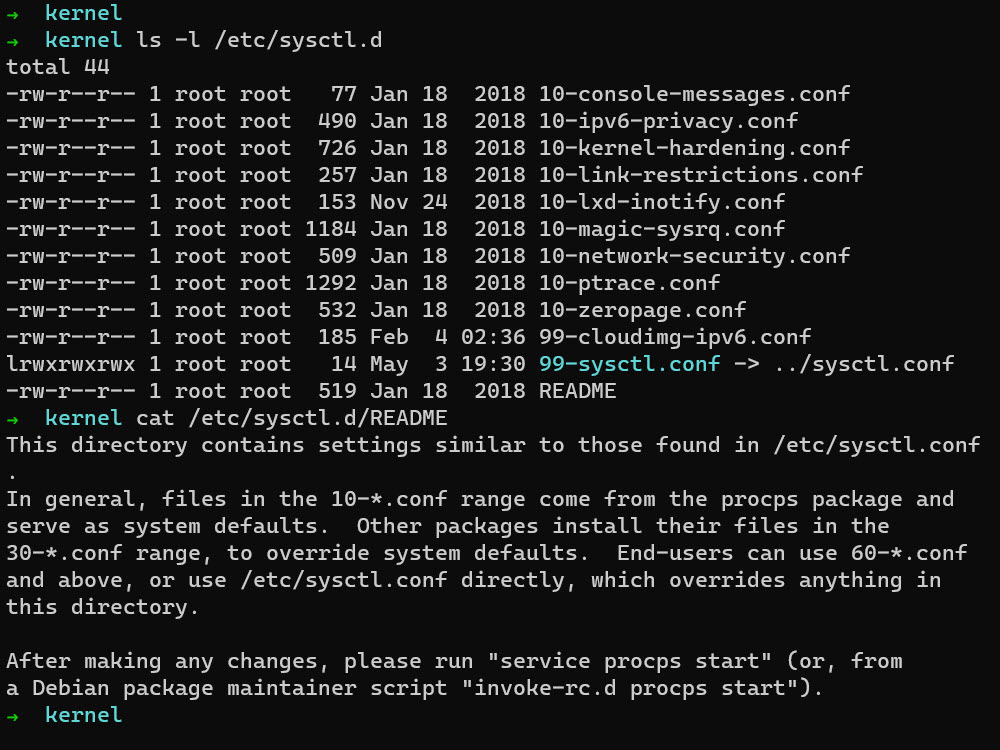
To change the setting we need to add the sudo in front of our command, and we can modify the files with our favorite text editor. For example, if we like to modify the network security setting we can run
sudo vim /etc/sysctl.d/10-network-security
we can see inside our editor what are the current settings, to add a new setting we should first provide the command about what we trying to do and next, we input our new setting.

After we have make our changes we need to we need to run
sudo service procps start
to apply our changes to the system. Now, these settings become persistent and will stay active even after the system reboot.
Thank you for reading, keep studying!!
 Virtual Elementary